Getting started
Getting started
You will be ready in a few minutes: create an account, add your own AI key, start talking.
1. Create an account
- Open https://app.fine-techs.com/registrieren.
- Enter your email address and tick the box: “I am at least 18 years old and accept the terms of use and the privacy policy.”
- You receive an email with a link. Your account is only created when you click it. The link is valid for 15 minutes.
- Disposable addresses do not work – use an address you keep. You also use it to sign in later.
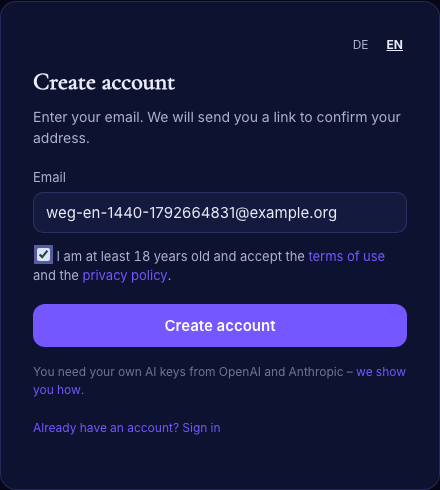
There is no password. To sign in, enter your address at https://app.fine-techs.com/login and you receive a fresh link by email each time.
2. Welcome
Your companion is called “Genie” at first – in the welcome you give it a name of your own (any time later under “My companion”). After the first click, the welcome guides you through the essentials in five short steps: what you use the app for (Private, Business or both), what your companion is called, looks and sounds like, your AI key, connecting apps and a first small task. You can stop at any time and continue later.
3. Get an AI key
Your companion works with your own key at OpenAI or Anthropic. You pay for the AI directly at the provider; Fine-Techs gets nothing from it. One key is enough to start:
- OpenAI is needed for the voice (conversation mode, read aloud, dictation) and for pictures.
- Anthropic is needed for research with sources from the web and for Osiris.
With both keys your companion can do everything it can do.
OpenAI
- Open platform.openai.com and sign in or create an account. A ChatGPT subscription does not count here – the developer platform is billed separately.
- Add credit under Settings › Billing. According to OpenAI the smallest amount is $5. Turn off auto-reload if you want fixed limits.
- Open platform.openai.com/api-keys and click Create new secret key. Give it a name, for example “Companion”.
- Copy the key right away – it is only shown once. It starts with
sk-.
Anthropic
- Open the Claude Console at platform.claude.com and sign in or create an account.
- Buy credit under Settings › Billing with Buy credits. Without credit the key does not work.
- Open platform.claude.com/settings/keys and click Create key. Give it a name and choose a workspace (for example “Default”).
- Copy the key right away – it is only shown once. It starts with
sk-ant-.
You manage credit, limits and invoices at the provider. That is also where you decide how much may be charged at most. Provider menus can change; we checked this path on 22 October 2026.
4. Add your key
Add the key in the welcome (step “Your own key”) or later under Settings › AI access.
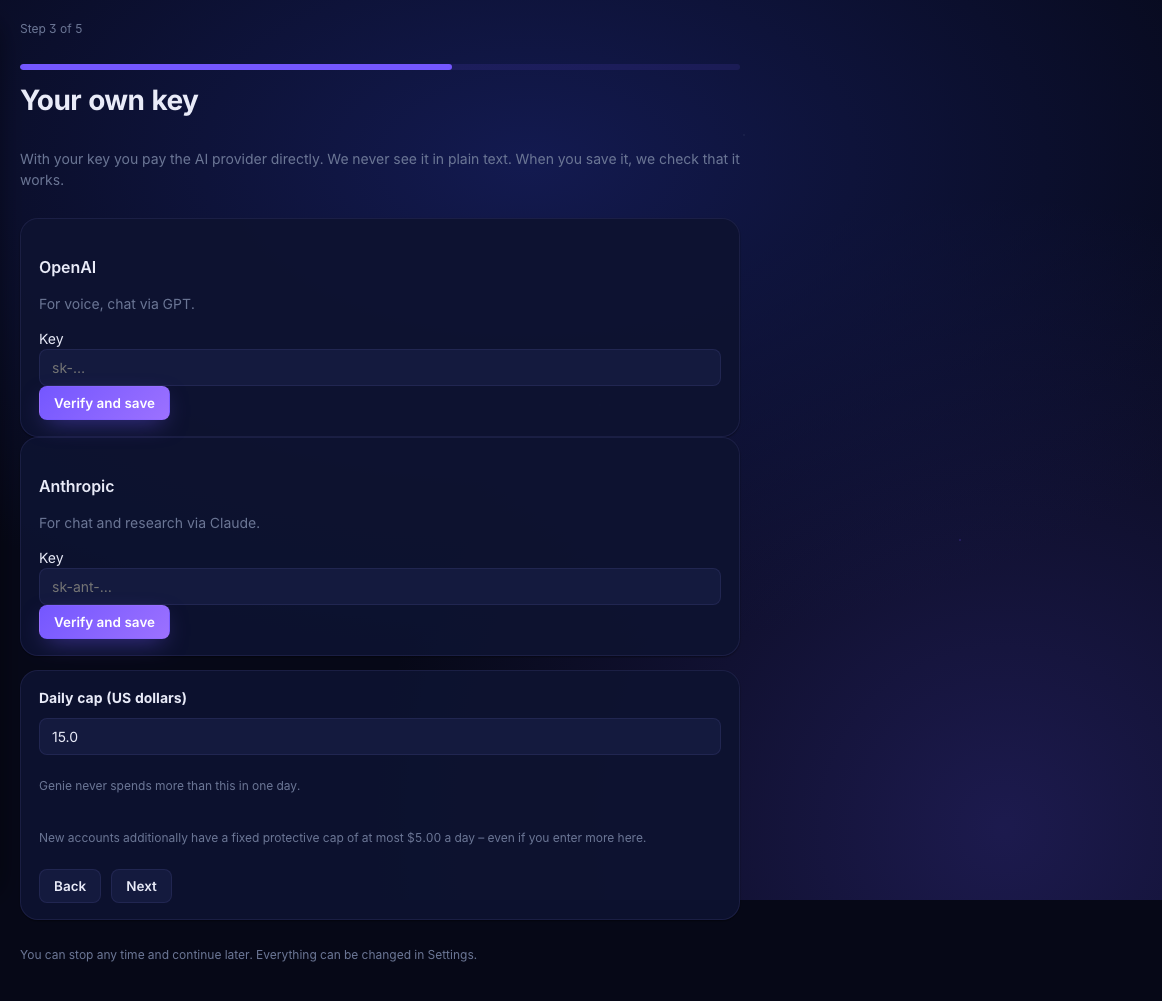
When you save it, the app checks that it works. The key is stored encrypted and never shown in plain text.
You also set a daily cap: your companion never spends more than that in a day. During the pilot phase new accounts additionally have a fixed protection of at most $5.00 per day and area.
5. Second area
You have two separate areas: Private and Business. The second one exists as soon as you switch for the first time at the top of the sidebar. The app then asks whether you want to use the same key there too – only your click copies it. More under Private and Business.
6. First conversation
Just start typing in the chat, for example: “Write me a short greeting for my customers.” Or click the round Speak button and speak.
In the first conversation your browser asks whether the page may use the microphone. Allow it – otherwise your companion cannot hear you. The microphone is only on while the conversation runs. Good to know: in a conversation your voice goes directly to OpenAI.
What next?
- My companion – name, look, voice and way of talking.
- Team rooms in the Atelier – bigger tasks done with a team.
- Costs – roughly what an answer, a conversation or a picture costs.